
If you have your own domain, most likely you will have to deal with uploading files to your host. Using control panel such as CPanel, DirectAdmin, etc is going to be tedious if you have plenty of files to upload. For instance, uploading new release of WordPress.org package or plugins. An FTP (File Transfer Protocol) will be a better choice in this case. You can install any FTP software like Filezilla, CuteFTP and many more.
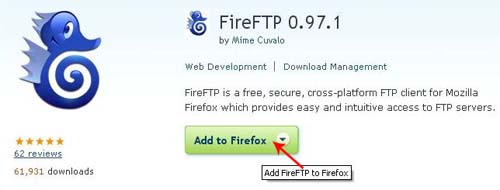
If you don’t wish to download any FTP program and want to use a web-base FTP instead, you can install FireFTP. FireFTP is a free FTP client for Mozilla Firefox. Means, you will have to use Mozilla Firefox browser.
Note: The current FireFTP version is not supported in Firefox 3 yet, by the time I’m writing this.
This post will guide you on how to use FireFTP to transfer files to your host. First go to FireFTP Firefox Add-on site to install FireFTP. Click on the “Add to Firefox”.
After that, a window will pop up, click on the “Install” button.
Then the installation will begin.
Click on “Restart Firefox” once the installation is complete.
After restart Firefox, you will be able to find the FireFTP option under “Tools”. You can also add a FireFTP shortcut at your Toolbar.
When you open up FireFTP, the firs thing that you need to do is to setup your FTP account. (Click the image below to enlarge)
- Click on the “Manage Accounts” and choose “New”
- Give a name to your account, it can be any name but make sure it’s easy to identify. (if you have more than one ftp account)
- Type in your exact FTP address, normally it will be something like ftp.yourdomain.com
- Type in your FTP account login ID, normally will be the same as your control panel login ID.
- Type in your FTP account password, normally will be the same as your control panel password.
- Click on OK to finish the account setting.
- Choose your account and click on Connect.
If your setting is correct, by now you will be able to connect to your FTP server. And you can start uploading/downloading files to/from your host. (Click the image below to enlarge)
- When you want to upload files these are the steps that you want to perform:
- On the left panel, browse to the directory of the files that you want to upload.
- On the right panel, browse to the directory where you want your files to be uploaded.
- Select the file(s) in the left panel that you want to upload to your host.
- Click on the green arrow (pointing to the right) to start the upload transaction.
- You can monitor your transaction status at the down panel.
Note: The green arrow pointing to the left means download.
When you finish everything, you can click on the “Disconnect” button and close the FireFTP window.
That’s all. Easy, isn’t it?
Try it yourself.
By Emiratez on Sep 9, 2008
Im using mediafire to upload something now. The upload speed is very slow.. But got some file hosting site like filefactory which is quite faster. How about this fireFTP?
By Tiffany on Oct 25, 2010
Thank you for posting this!! I am stumbling my way through publishing some new stretching and family massage videos, and this instructional was SO helpful!